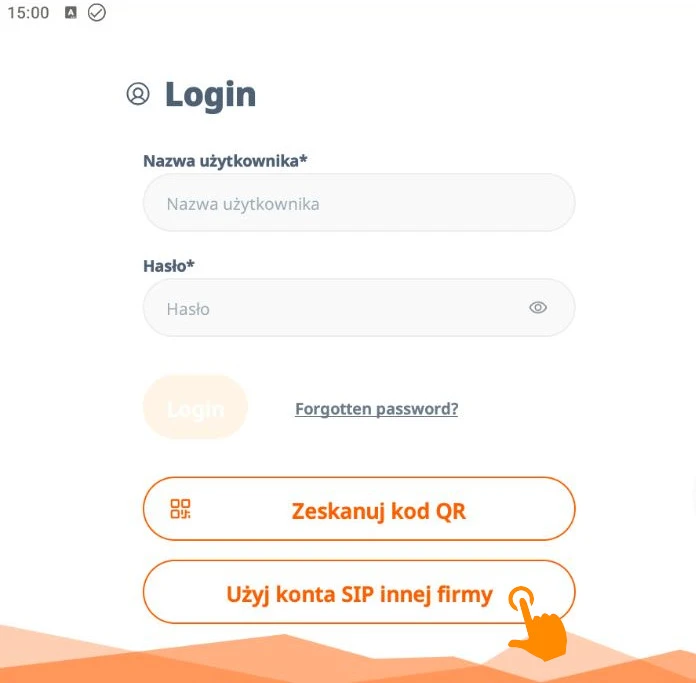
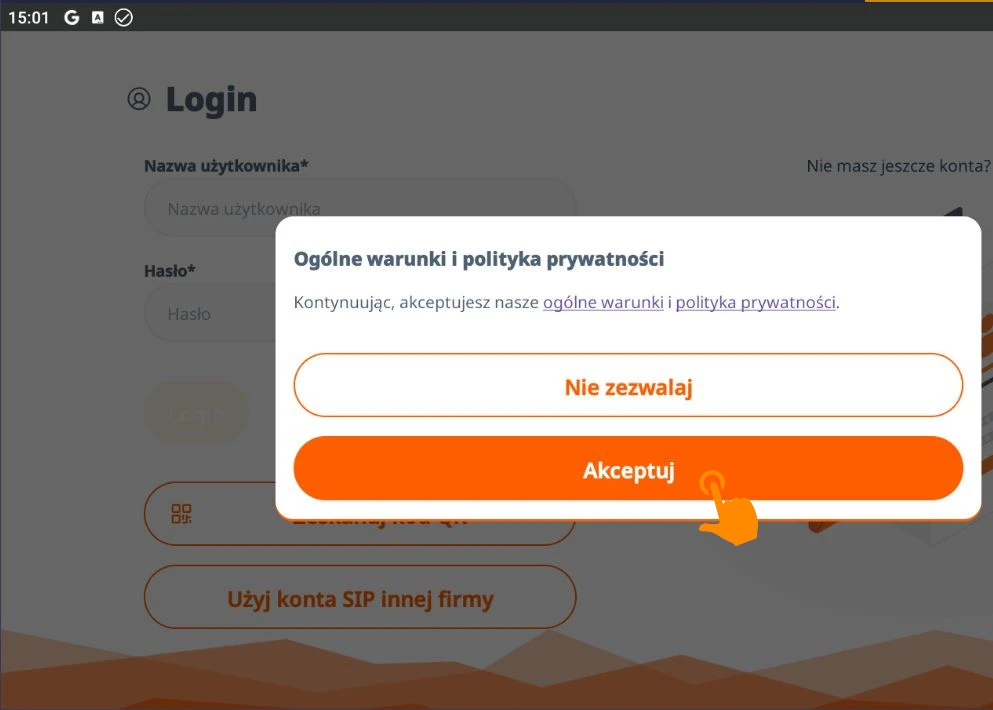
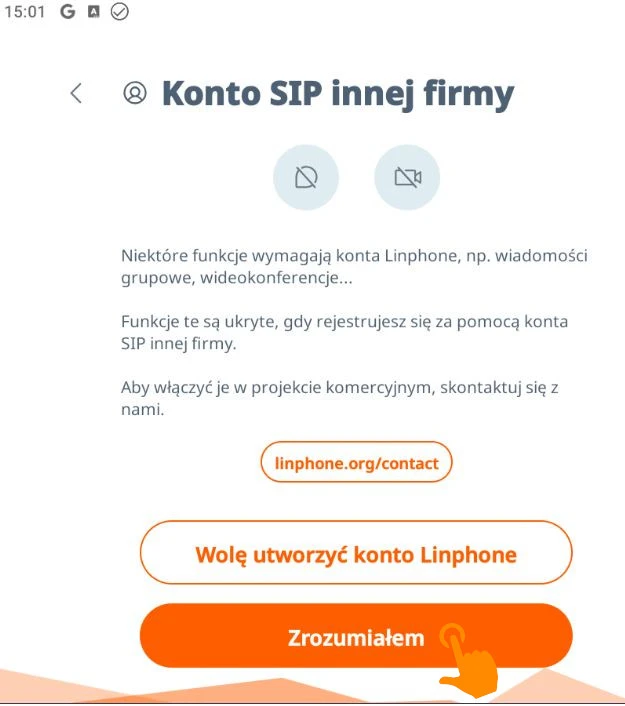
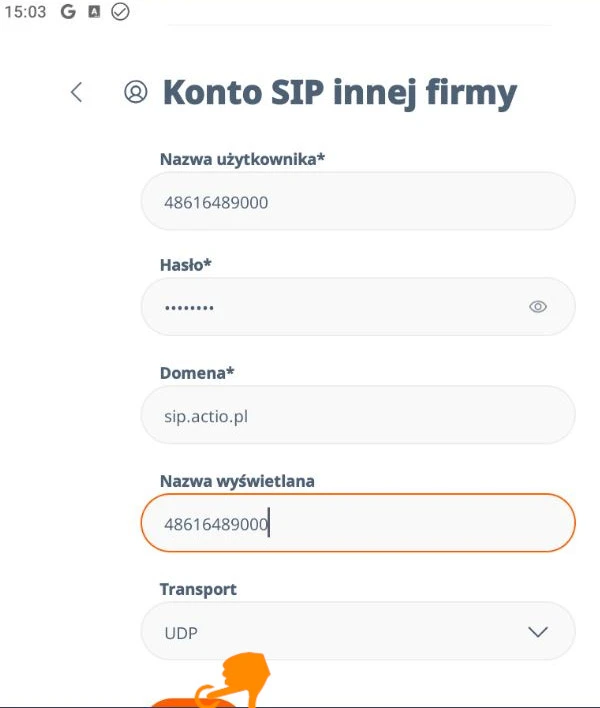
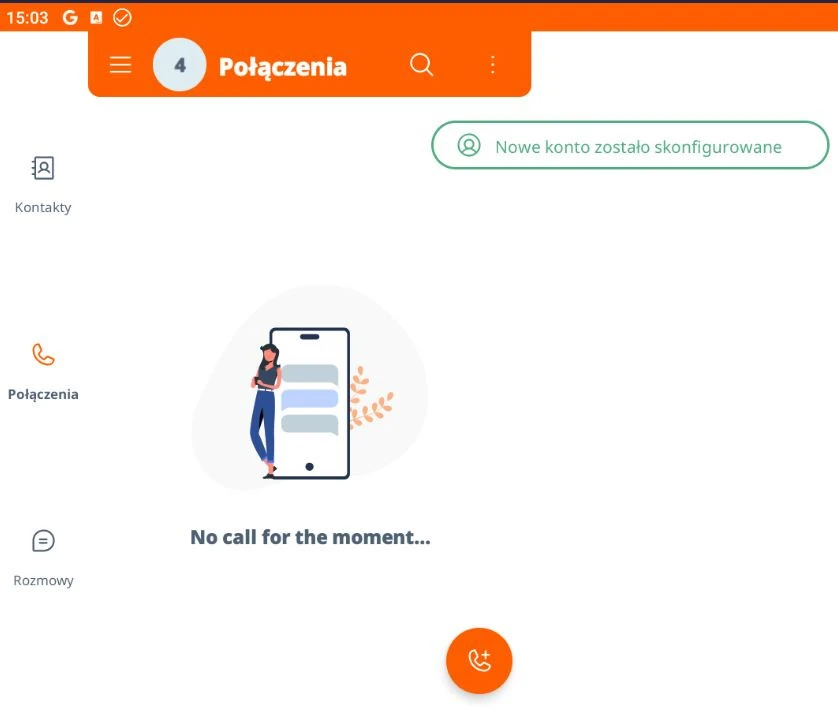
Linphone 1: Selecting an account type After launching the app, go to the login screen. Do not enter any information in the top fields; instead, select the option at the bottom:Click the “Use a third-party SIP account” button. 2: Acceptance of the Terms and Conditions A window will appear displaying the terms and conditions and privacy policy.To continue, click the orange “Accept” button. 3: Information about additional features The app will display a message stating that certain features (such as video conferencing) are reserved for the app developer’s native accounts.Read the message and click “I Understand” to proceed to the appropriate setup. 4: Entering Operator Information This is the most important step. Fill in the fields using the information provided by your VoIP provider (the example shows Actio’s details):FieldWhat to enter?Example from the imageUsername Your SIP number including the 4848616489000Password Your personal SIP account password********Domain Operator’s server addresssip.actio.plDisplay name Any name (e.g., a first name or a number)48616489000TransportData Transfer ProtocolUDP 5: Finalization and verification Once the information has been confirmed, the app will return to the home screen.A green message should appear at the top of the screen: “New account has been set up.”In the Calls tab, you’ll see that you’re ready to make calls.Important note: If you are unable to make calls despite the correct configuration, make sure you have a stable internet connection (Wi-Fi or LTE/5G).