Zoiper

Zoiper is one of the world’s most popular softphones, allowing you to make high-quality voice and video calls over the internet. Using VoIP (SIP) technology, the app turns your computer or phone into a professional communication tool, ideal for both remote work and home use.

1. Selecting a software version

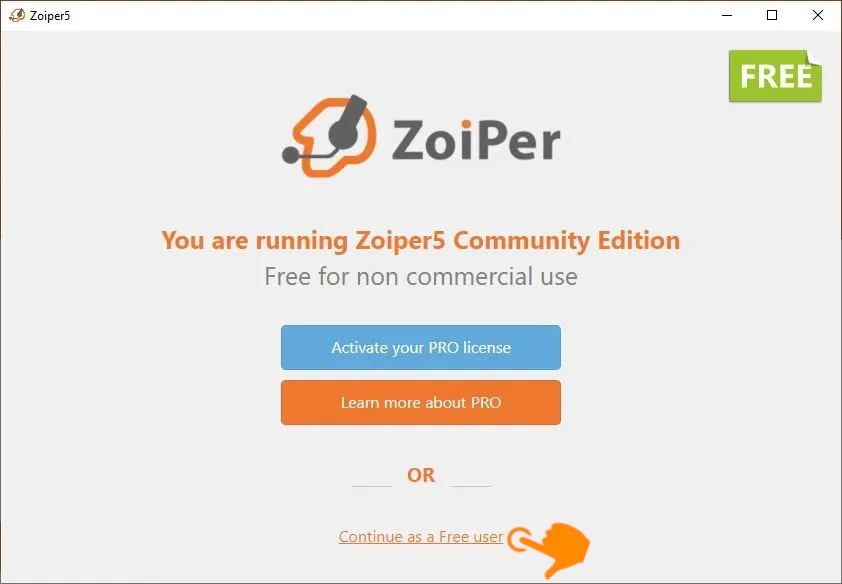
When you launch the app, you’ll see the welcome screen. If you don’t have a paid license, select the option at the very bottom:

  • Click “Continue as a Free User.”

2. Login credentials

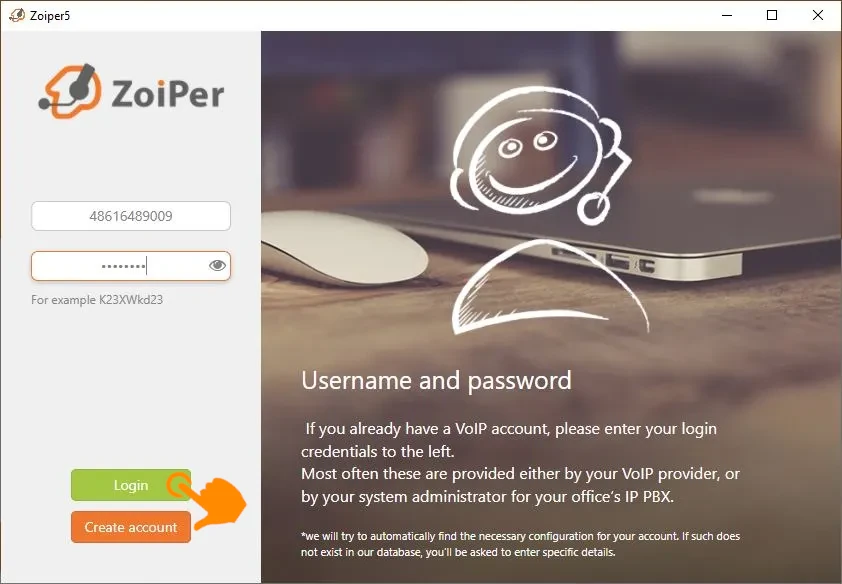
In this window, you need to enter the basic information provided by your VoIP provider:

  • Username: Enter your user ID (for example: 48616489009).
  • Password: Enter the password for your SIP account.

Click the Login button.

Server address (Hostname)

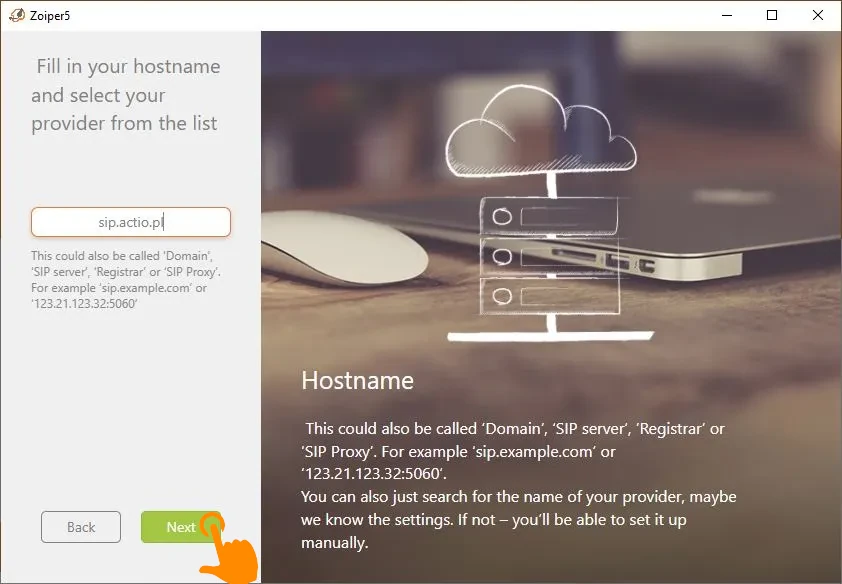
Now you need to tell the app which server to connect to:

  • In the text field, enter the server address (Hostname/Domain): sip.actio.pl.
  • Click the Next button.

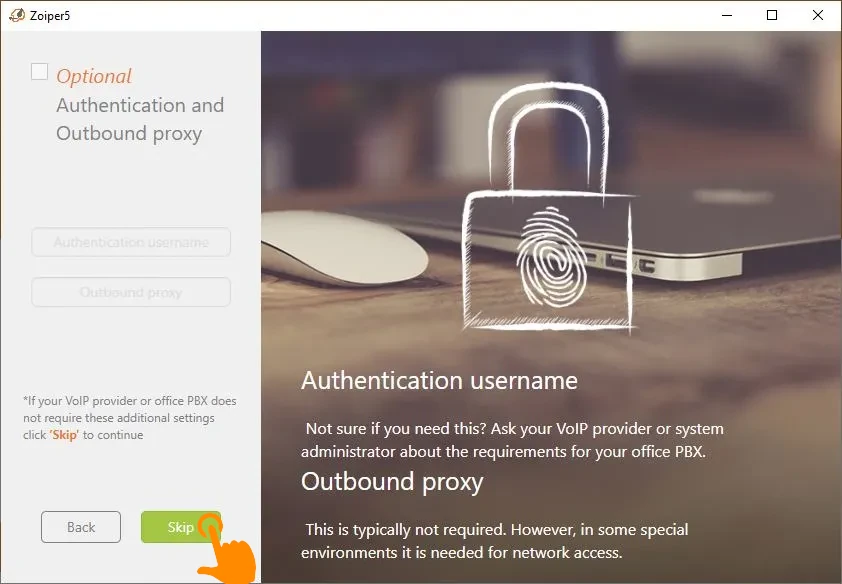
4. Optional authorization settings

In most standard configurations, this step is skipped:

5. Testing the configuration

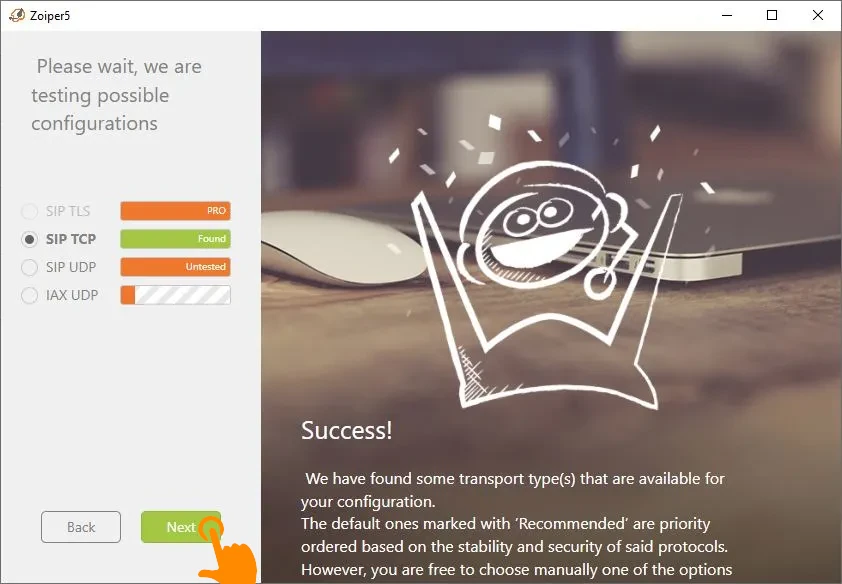
Zoiper will automatically check the available transport types (protocols).

  • Please wait while the application tests the options.
  • Once the system finds a valid protocol (such as SIP TCP/UDP, highlighted in green), click the Next button.

6. Finalization and Account Name

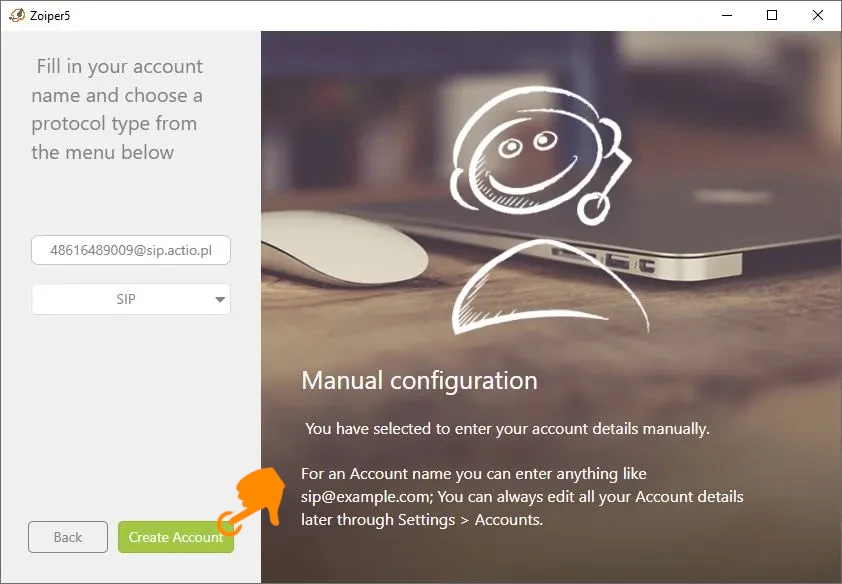
This is the final step of the manual setup:

  • Make sure you have entered the correct server number and address.
  • Make sure the selected protocol is SIP.
  • Click Create Account.

7. Connection verification

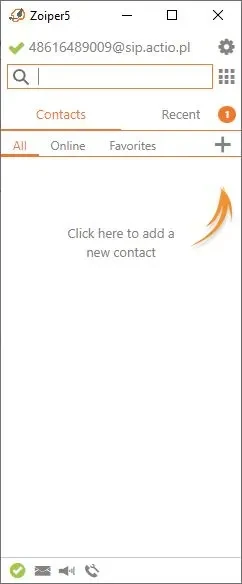
If everything went well, you will be taken to the app’s main window:

  • A green checkmark (ready icon) should appear next to your username at the top.
  • Now you can start adding contacts or use the dial pad (the icon to the right of the search bar) to make calls.