Zoiper - sending SMS with an ACTIO account
Zoiper is one of the world's most popular softphone apps, allowing you to make voice and video calls and send text messages over the internet (using VoIP technology). The app supports SIP and IAX protocols, allowing it to integrate with nearly any internet telephony provider, such as ACTIO. With Zoiper, you can use your landline or business number directly on your smartphone, no matter where you are.
Zoiper: How to Send an SMS
Configure the app with your ACTIO SIP account and start sending messages - step by step.
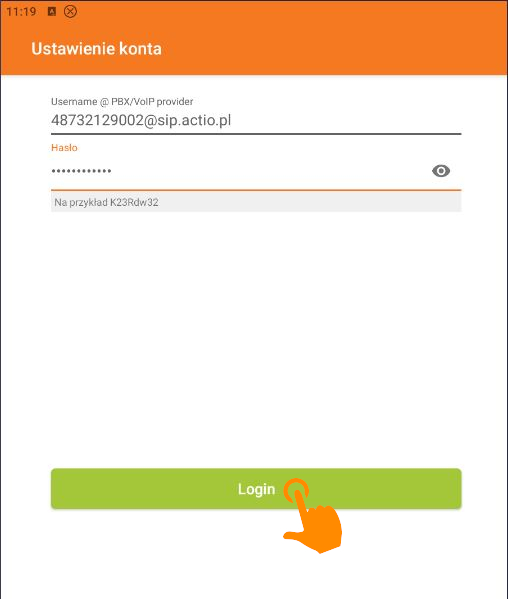
Log in to your operator account
The first step is to authorize your device on the ACTIO network.
- In the Username field, enter your number followed by 48, and add the SIP server (e.g., [email protected]).
- In the Password field, enter a unique password for your SIP account.
- Confirm the information by clicking the green Login button.
Server Settings and Proxy Options
The app must connect to the appropriate communication node.
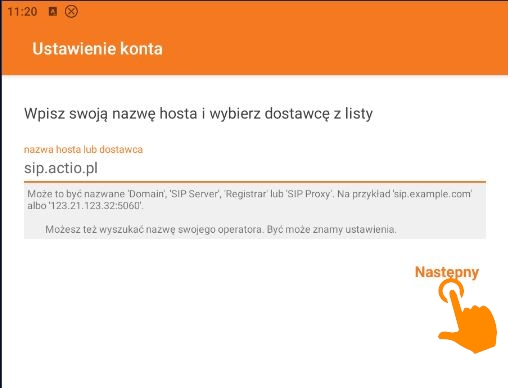
- Make sure the hostname field displays the address sip.actio.pl, then click Next to continue.
- On the proxy configuration screen, select Skip - the standard configuration for ACTIO does not require you to fill in these fields.
Connection test and protocol selection
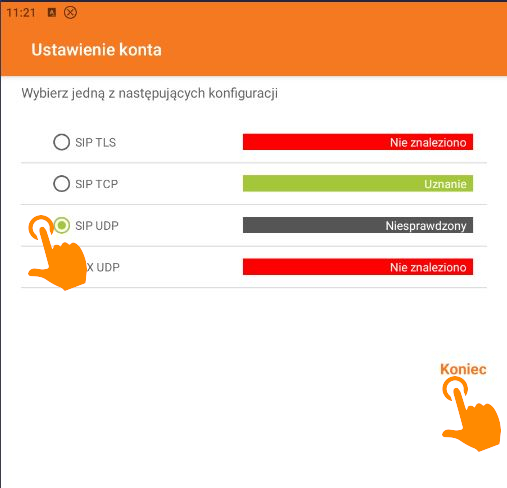
Zoiper will automatically check which connection method is the most stable for your network.
- Wait for the tests to finish; select the UDP protocol or the one that was detected as active (e.g., SIP TCP).
- Finish the process by clicking the Finish button.
Sending text messages
Once your account is successfully registered, you can start sending text messages.
- In the top navigation menu, select the fourth icon (the chat bubble).
- If you don't have any active chats yet, click the orange plus icon in the bottom corner of the screen.
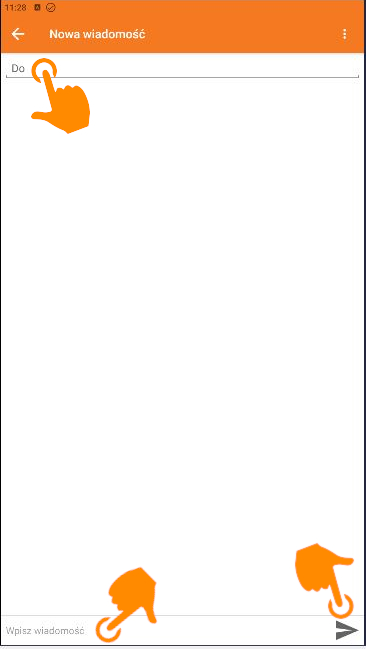
- In the new message window, enter the recipient's number in the To field.
- Type your message in the Type your message field at the bottom of the screen.
- Send the text message by clicking the paper airplane icon.
Want to send SMS automatically?
Besides the Zoiper app, you can use text messaging directly from your own system.
Need help with the setup?
Our team will help you configure Zoiper and other apps with an ACTIO account. Start with a conversation.