SIP softphone setup guide
Setting up a SIP account in MizuDroid
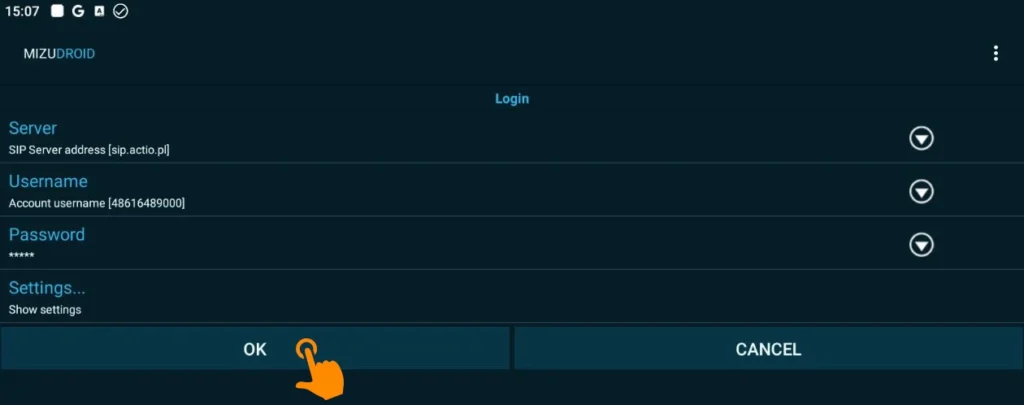
When you launch the app, you'll see a simple login screen that you'll need to fill out with your provider's credentials (in this case, ACTIO). The example below uses ACTIO's details, but the same fields apply to any operator.
1
Enter your login credentials
Fill in the fields according to the table below (the example shows ACTIO's details):
| Field | What to enter? | Example from the screen |
|---|---|---|
| Server | Your provider's SIP server address. | sip.actio.pl |
| Username | Your SIP account number or phone | 48616489000 |
| Password | Your personal password for the VoIP service. | ***** |
2
Confirm and adjust settings
- After filling in all the fields correctly, click the OK button in the lower-left corner of the screen.
- If you need to change additional settings (such as the port or transport protocol), you can click Show settings below the password field before confirming.
Need help setting up your SIP account?
Our Polish-based support team will help you get connected. Reach out and we'll guide you through the configuration.